Maintain DIY
Introduction
This is Additional Module (DIY Fields & DIY Script Module)
-
The function and description:
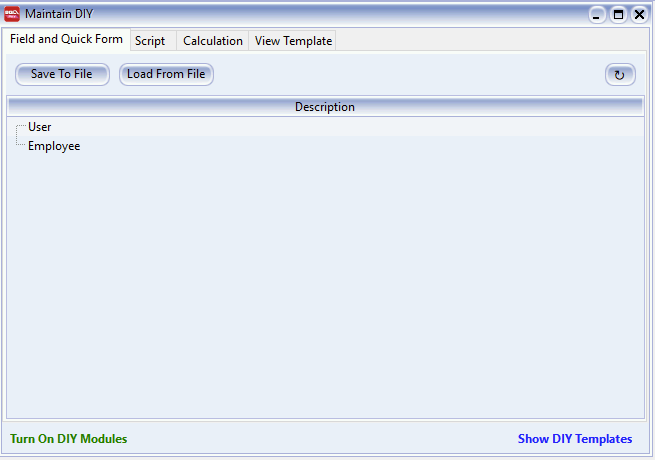
- Field and Quick Form: User can Self Create new User Define Field(s) & Design the Layout
- Script: Customise the Application
- Calculation: Override the build in Calculation (SQL Payroll ONLY)
- View Template: For Advance Form Mode
Calculation
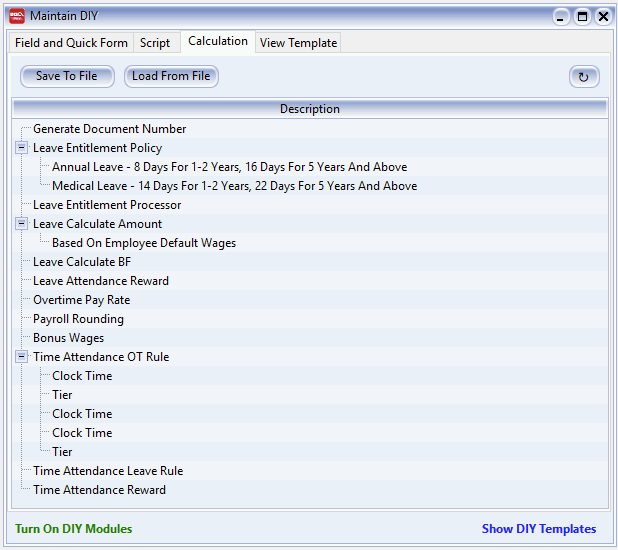
User can override the build in Calculation/Formula to suite their requirement. The Language use is Pascal.
Available Calculation Types:
- Generate Document Number: Manipulate the Next Document Number Format.
- Leave Entitlement Policy: Manipulate yearly Leave Entitlement
- Leave Entitlement Processor: Manipulate Calculation of Year of working
- Leave Calculate Amount: Manipulate the Leave Calculation Amount
- Leave Calculate BF: Calculate how many leave can be Brought Forward if not fully taken
- Leave Attendance Reward: Manipulate Reward for Perfect Attendance.
- Overtime Pay Rate: Manipulate the Overtime Pay rate
- Payroll Rounding: Manipulate the Net Pay Amount
- Bonus Wages: Manipulate Bonus and Incentive Payments.
- Time Attendance OT Rule: Manipulate Overtime Rules based on Attendance.
- Time Attendance Leave Rule: Manipulate Leave Rules based on Attendance.
- Time Attendance Reward: Manipulate Reward Rules based on Attendance.
Example 1 - Leave Entitlement Processor - Calculate from Confirm Date
Below is example to change the Leave Entitlement Processor to be calculate from the Confirmation Date.
-
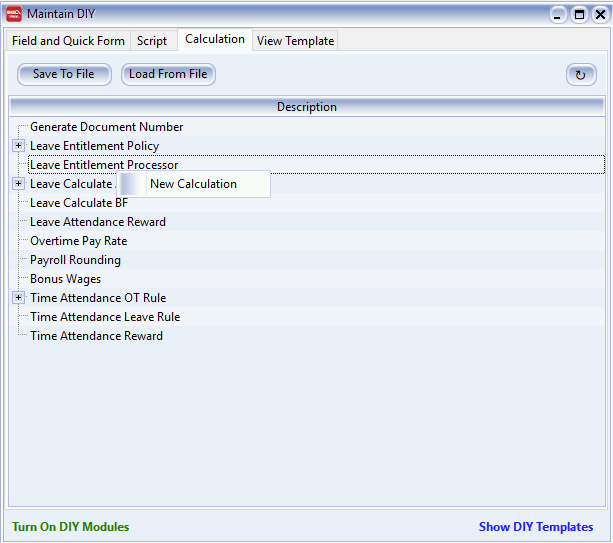
Right Click at Leave Entitlement Processor and select New Calculation.
-
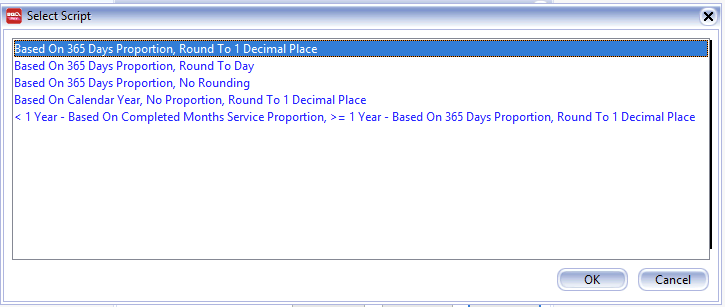
Click New Button and select any Formula which suit you & Click OK.
-
Enter any Description (eg. Leave_Entitlement_Processor-Confirm Date) in the Description field (Only Alphanumeric & no spacing).
-
In the Script look for the word
lJoinDate& change it tolConfirmDate.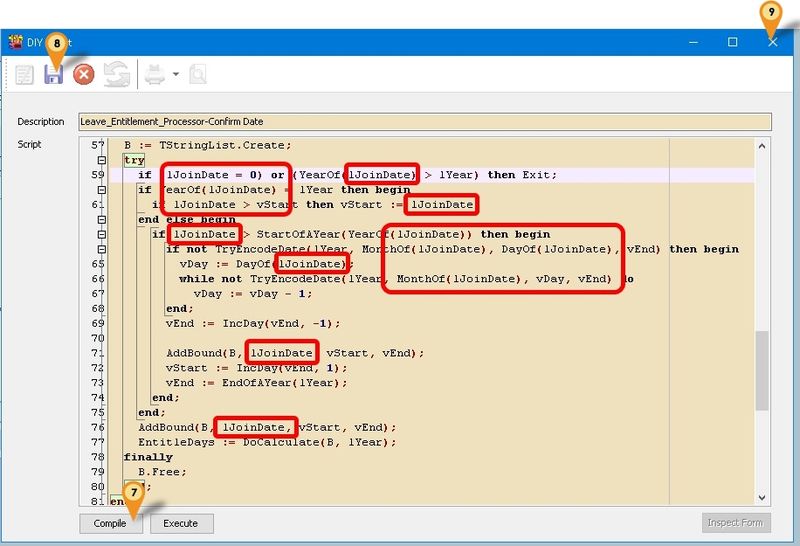
Example 2 - Leave Calculate Amount - Unpaid Leave Amount Base on Working Day
Below is example to change the Unpaid Leave Amount to base on Working Days in Maintain Contribution.
-
Right Click at Leave Calculate Amount and select New Calculation.
-
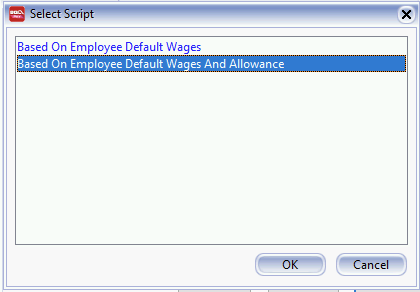
Click New Button and select any Formula which suit you & Click OK.
-
Enter any Description (eg. Leave_Calculate_Amt-Unpaid) in the Description field (Only Alphanumeric & no spacing).
-
In the Script look for the word
DaysBetweenStartAndEndDate& change it toWorkingDayPerMonthor Copy below script & paste to the Script Section.// Example - Leave Calculate Amount - Based On Employee Default Wages
uses DB, DateUtils;
begin
Amount := DefaultWages / WorkingDayPerMonth;
end.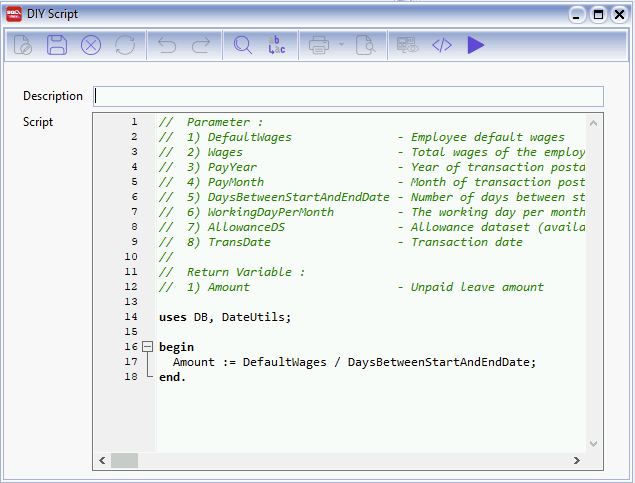
-
Click Compile button to make sure is Compile success.
-
Click Save button and click X to Close.
-
Select the Item just created (eg. Leave_Calculate_Amt-Unpaid) and click Ok button.
-
Done & Remember to set it at Maintain Leave Group under the Amount Column for UL.
Example 3 - Limit Overtime Rate
Below is example to set Maximum limit the Overtime Rate.
-
Right Click at Overtime Pay Rate and select New Calculation.
-
Click New Button.
-
Enter any Description (eg. Overtime_Max_Rate) in the Description field (Only Alphanumeric & no spacing)
-
Copy below script & paste to the Script Section.
uses Math, DB;

var V: Double;
begin
  V := 0;
  if OTAmount > 1500.00 then
    V :=  10.82 else //(1500/26/8)
    V := (OTAmount / 26 /8);

  PayRate := SimpleRoundToEx(V, -2);
end.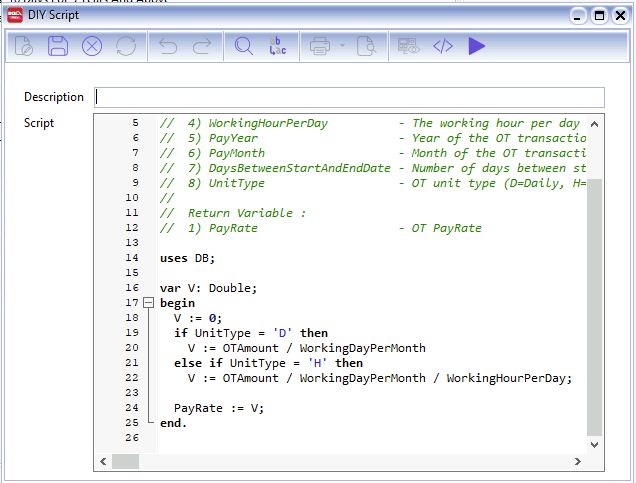
-
Click Compile button to make sure is Compile success.
-
Click Save button and click X to Close.
-
Select the Item just created (eg. Overtime_Max_Rate) and click Ok button.
-
Done & Remember to set it at Maintain Overtime.