FAQ
1. How do I restore missing Code and Employee Name columns in the Month Payroll screen?
Issue:
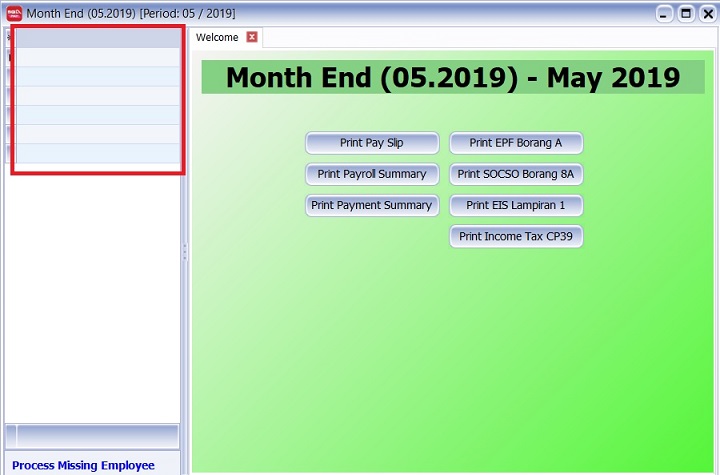
The Code and Employee Name columns are missing from the grid.
Solution:
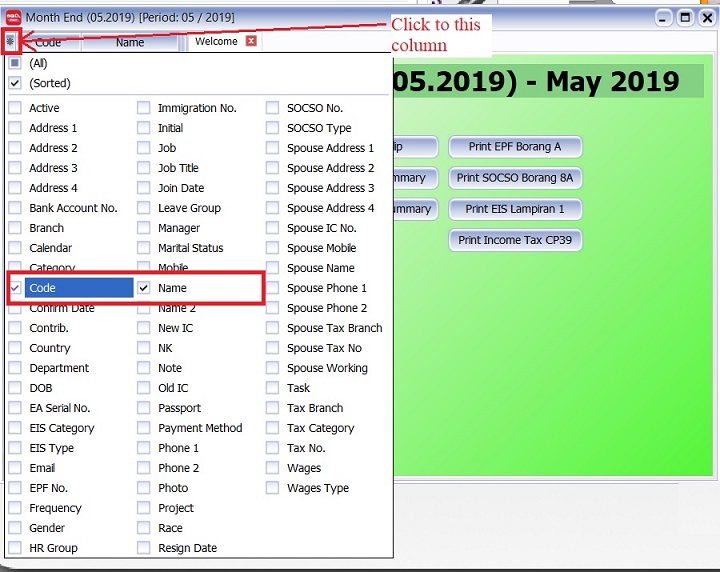
Click on top left column header and make sure Code and Name columns are checked.
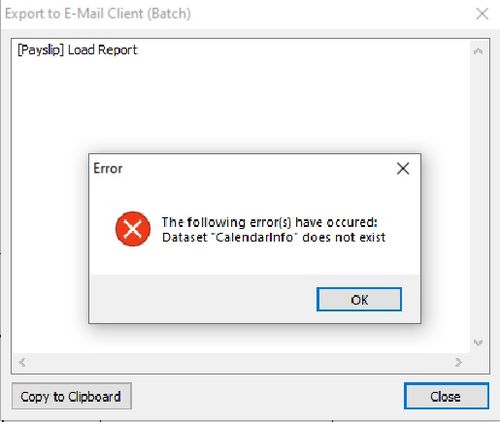
2. Error: Dataset "CalendarInfo" does not exist when batch emailing with a customized payslip format
Issue:
An error message appears when trying to Export to E-Mail Client (Batch) using a customized payslip format.
Solution:
In the Payslip Report Designer:
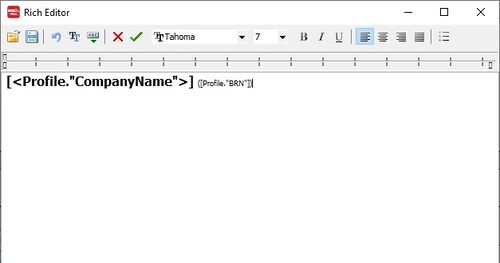
Change [<Profile."RegisterNo">] to [<Profile."BRN">]
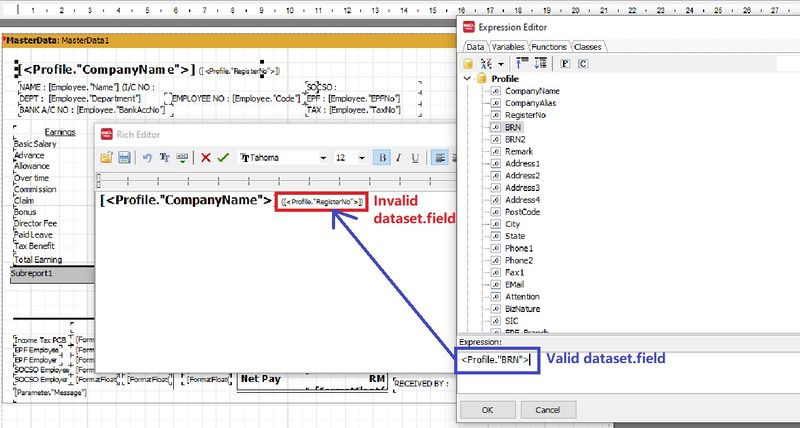
After the correction, it should look like the screenshot below.
3. Where can I define the company leave policy?
Solution:
- Configure the leave policy at Leave > Maintain Leave Group...
4. Why is the date format displaying incorrectly in some payroll reports?
Issue:
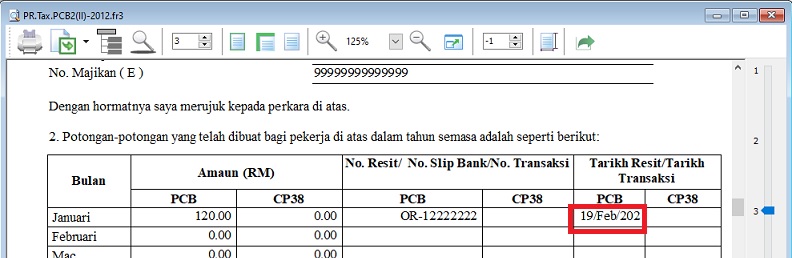
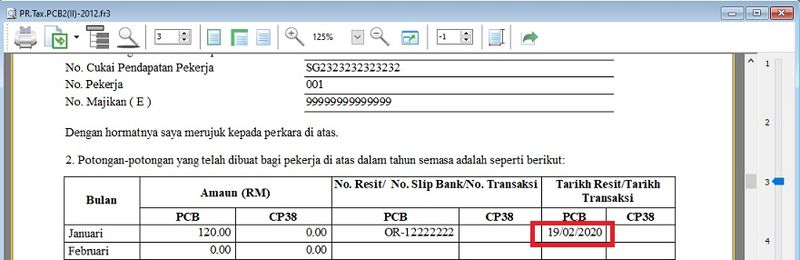
The date format in reports (e.g., Government Reports > Print Income Tax PCB 2 (II)) is incorrect. How can I fix this?
Solution:
-
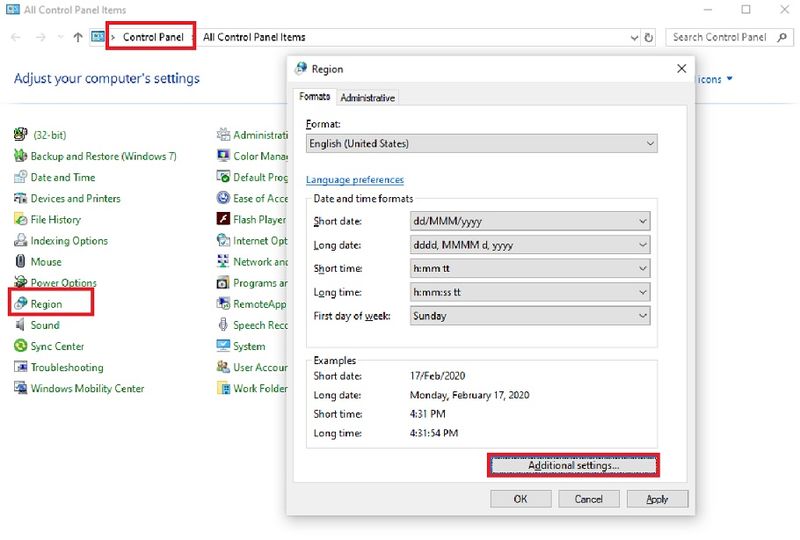
Go to Control Panel.
-
Search for Region.
-
Click on Additional Settings...
-
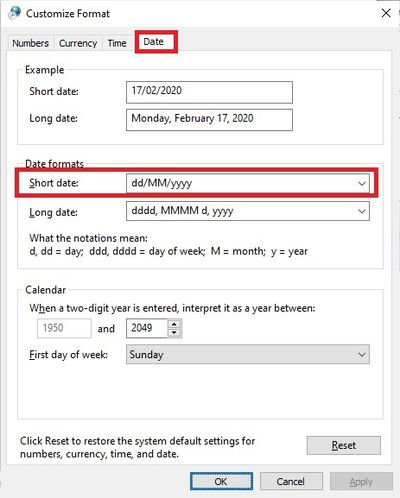
Click the Date tab.
-
Change the Short Date Format to
DD/MM/YYYY. -
The date format should now display correctly.
5. How to compare the Previous Month Payroll Of Employees?
Issue:
How do I generate a comparison of an employee's payroll against previous months?
Solution:
To compare an employee's payroll across past months, use the Yearly Individual Report.
-
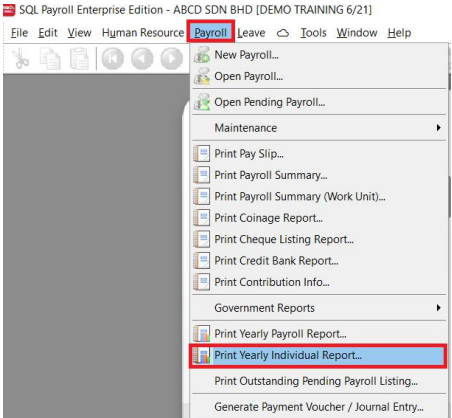
Go to Payroll > Print Yearly Individual Report.
-
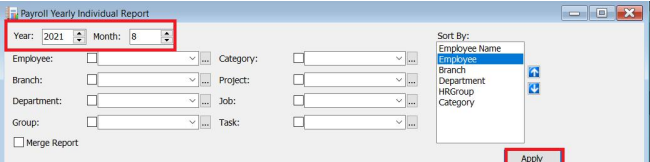
Set the month you want to compare. For example, to compare August 2021 with July 2021, set the Month to
8and Year to2021. -
Click Apply.
-
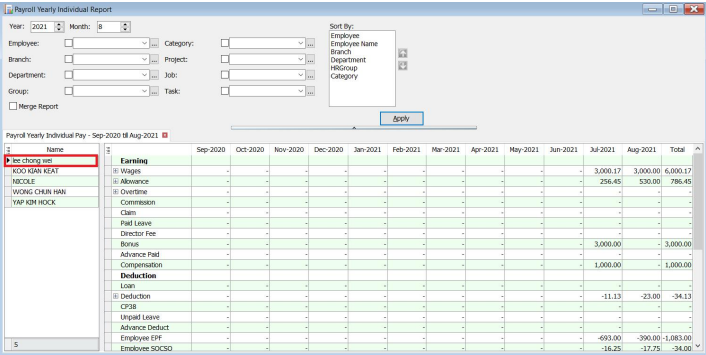
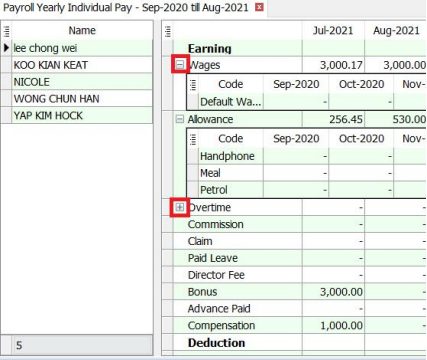
You will see the yearly earnings for each employee. Click on the employee’s name to see the breakdown.
-
Click the small + icon to expand the row and view details for allowances and overtime.
-
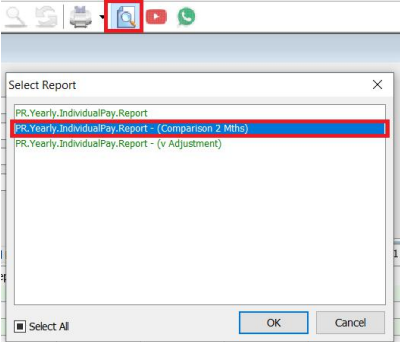
Click the Preview icon to generate a comparison report.
-
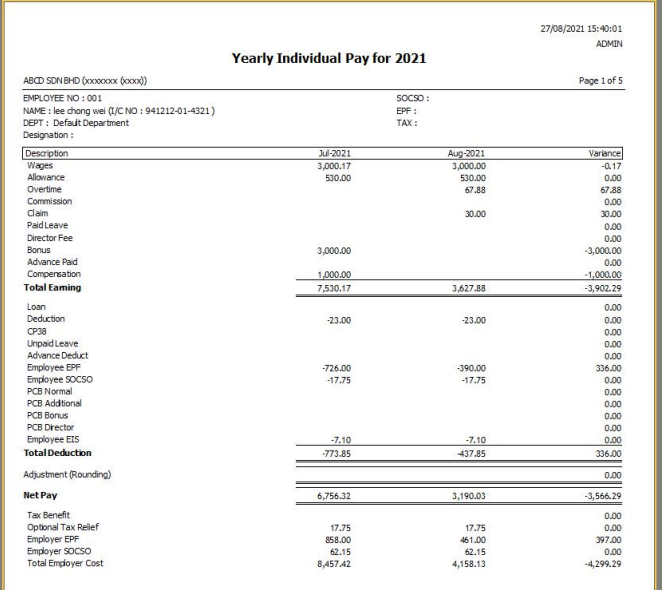
The report will show a comparison between the two months.
6. How to Enter Opening Balance in SQL Payroll?
Issue:
How do I enter the Opening Balance for employees in SQL Payroll?
Solution:
Entering an employee's opening balance is necessary when the employee joins the company in a month later than January.
The previous PCB amount must be entered so the system can correctly calculate the monthly PCB deduction.
-
Navigate to Payroll > Open Payroll.
-
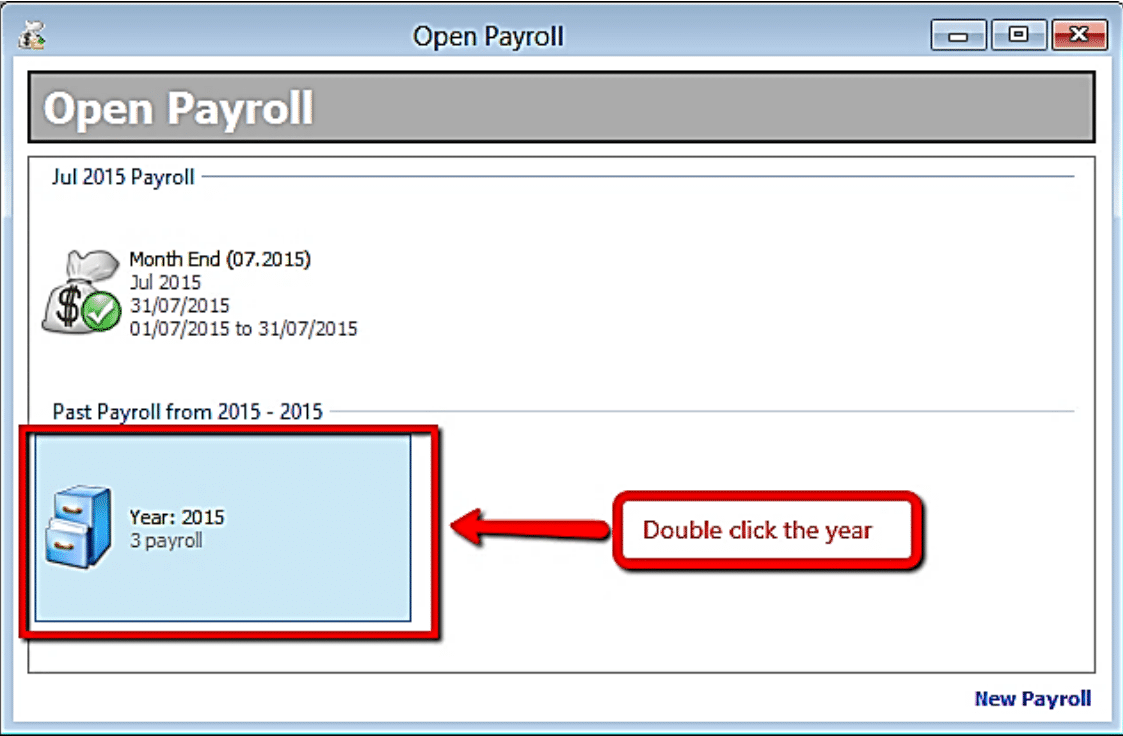
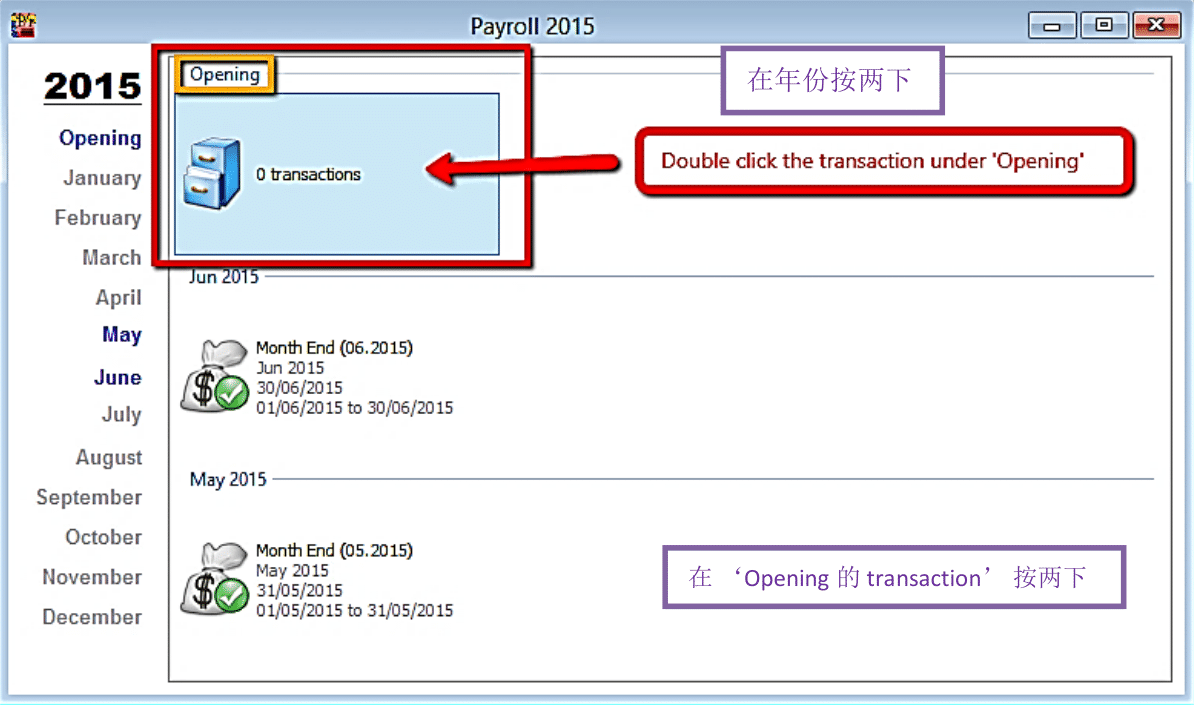
Double-click the payroll year to open it.
-
Double-click the transaction section under "Opening".
-
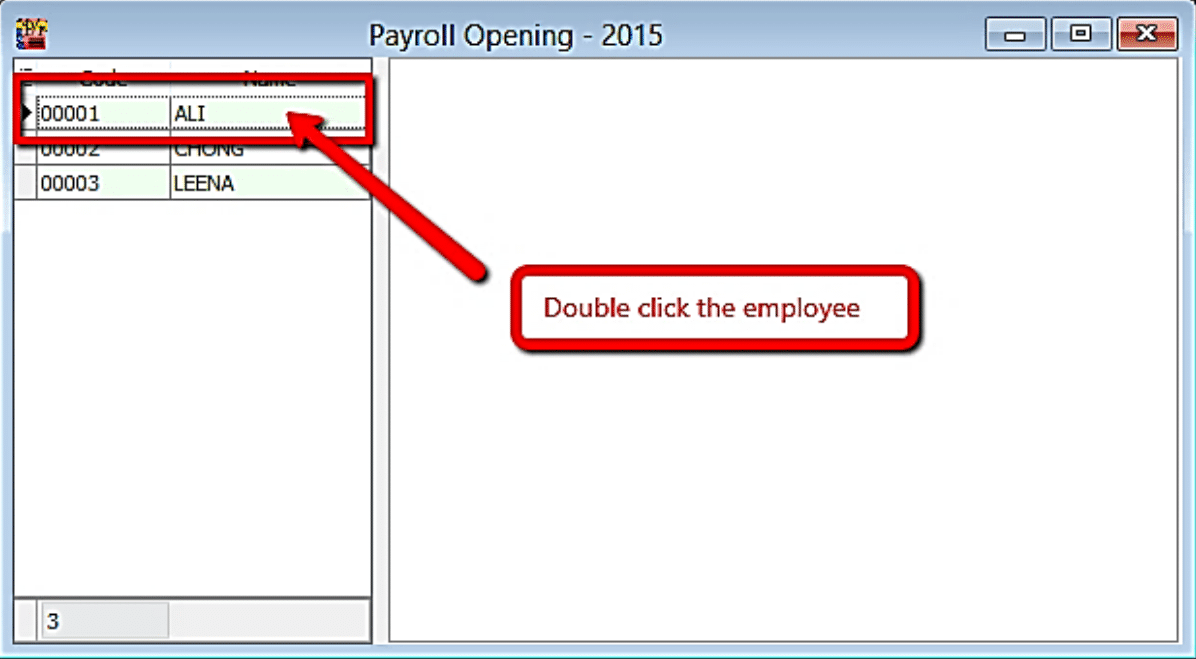
Select the employee by double-clicking on their name.
-
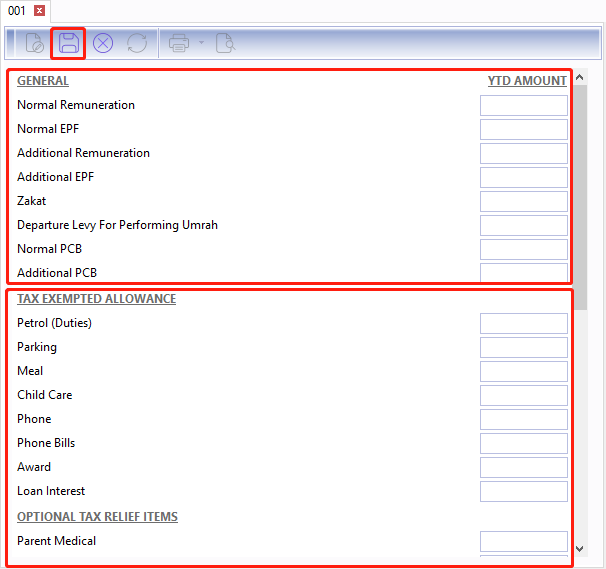
Enter all the employee’s opening balance information.
 info
info- For the General section, enter information according to the EA form.
- For other sections, verify if the employee had these contributions in their previous employment.
Mapping SQL "Opening" to EA Form
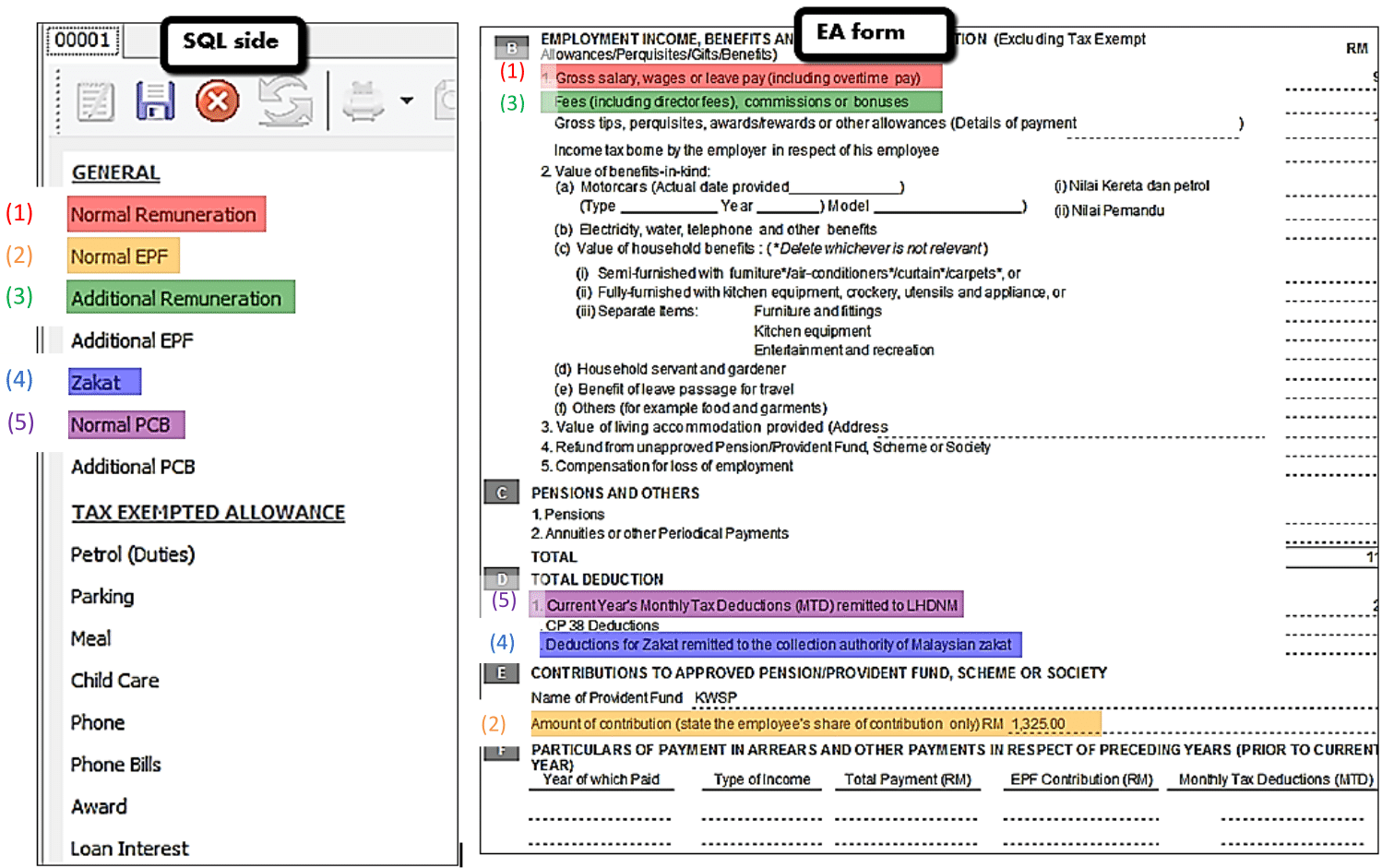
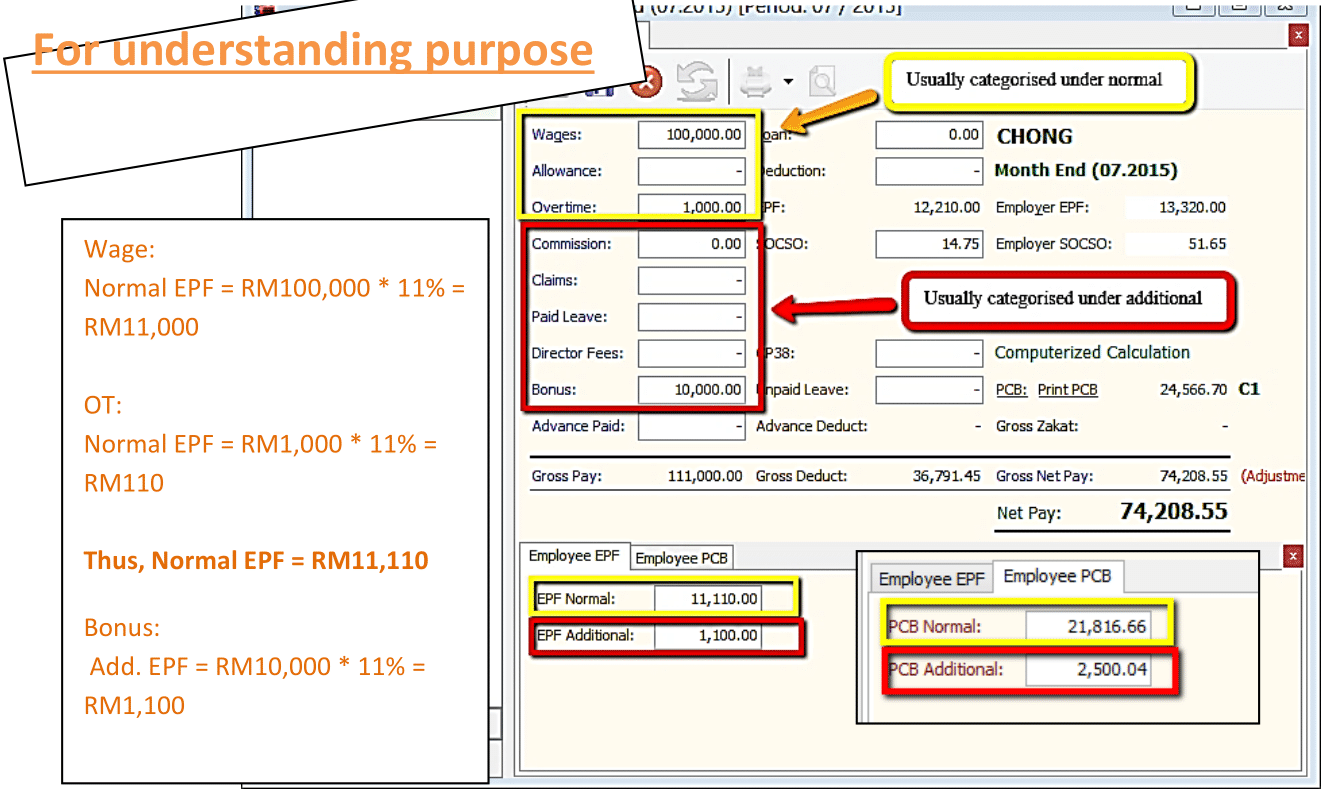
Special Note for Additional EPF and PCB
- Additional EPF and additional PCB are used when additional remuneration (bonus, commission, paid leave) is given.
- In the EA form, normal EPF and additional EPF is group into one.
- However, SQL recommend users to split the amount for a more detail input.
7. How to apply Recurring Payroll?
This allows you to repeat the same payment amounts (allowance, overtime, etc.) for the next month if you have already entered them for the current month's payroll.
Issue:
How do I set up recurring payroll so that allowances, overtime, or advance payments auto-populate in the subsequent month's payroll?
Solution:
-
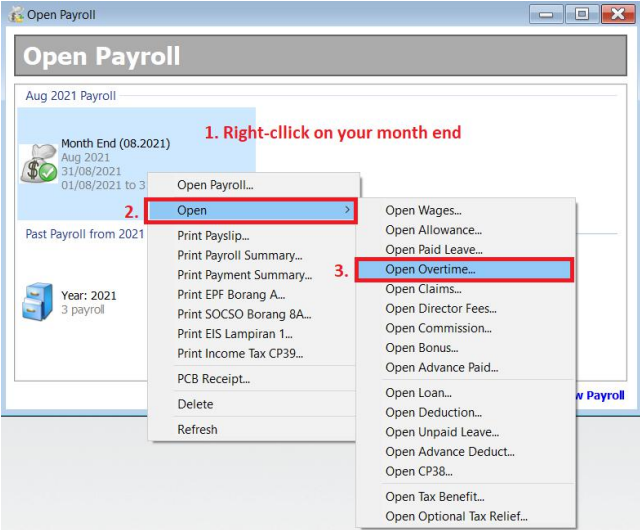
Right-click on the previous month’s payroll > Open > Open Overtime.
-
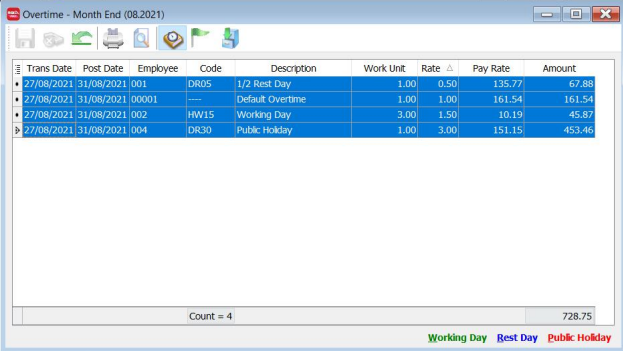
Select all Overtime entries by clicking on them while holding the SHIFT key.
-
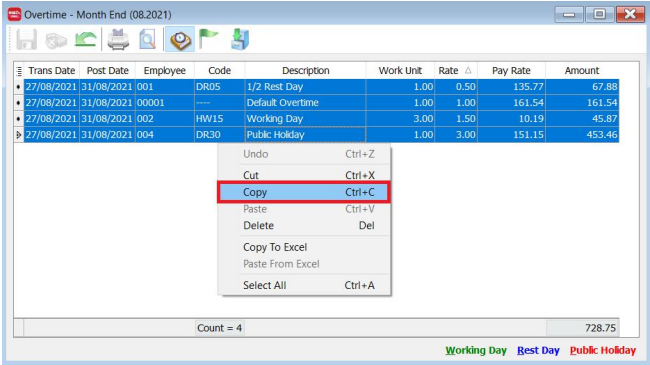
Right-click and select Copy.
-
Go to Payroll > Open Pending Payroll and select Overtime.
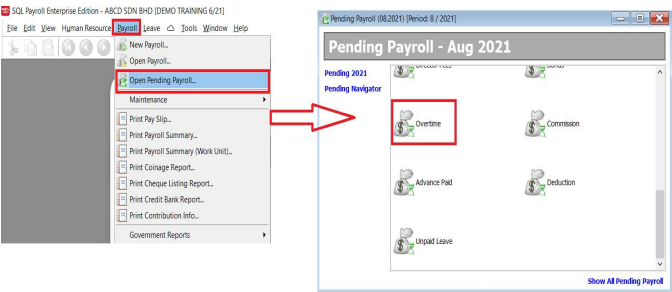
-
Right-click in the white area and select Paste.
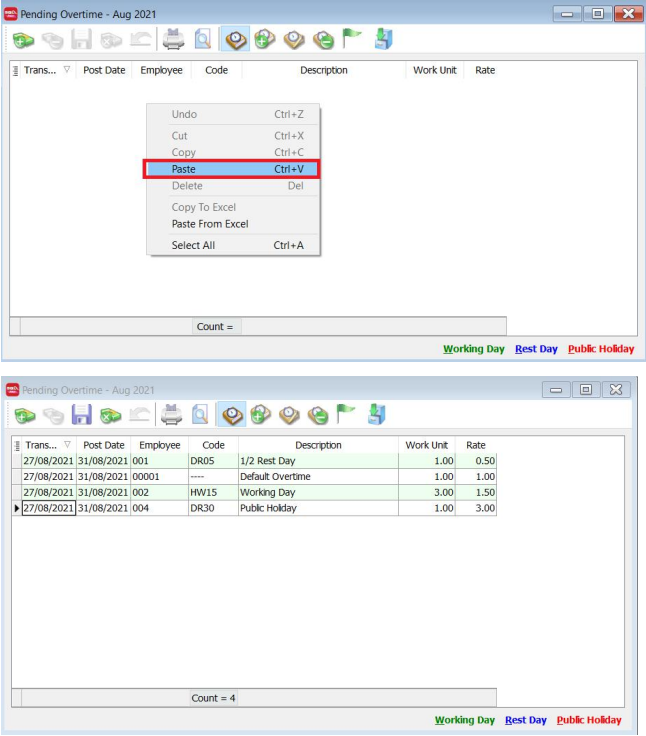
-
Select all the entries by clicking on them while holding the SHIFT key. Then, right-click and select Batch Edit Value.
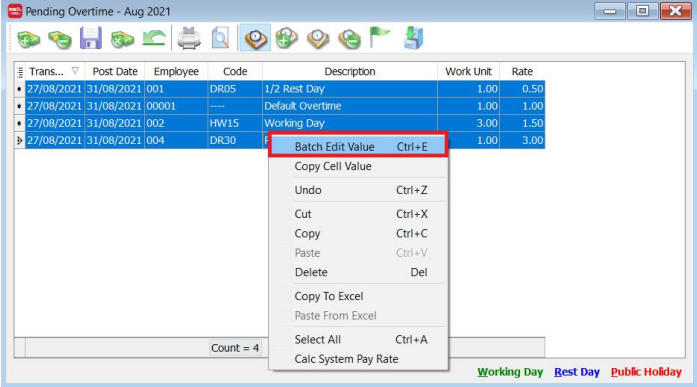
-
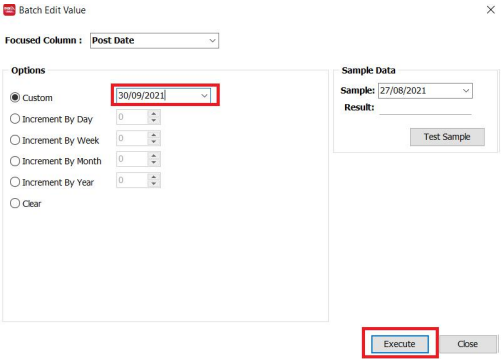
Change the Column to "Post Date".
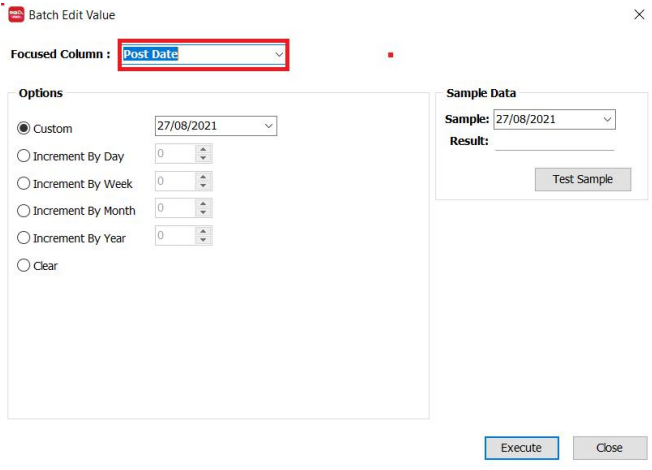
-
Enter the post date for the next month’s payroll and click Execute.
-
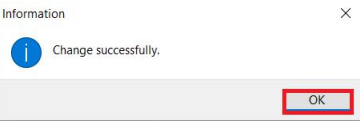
Click OK and close the window.
-
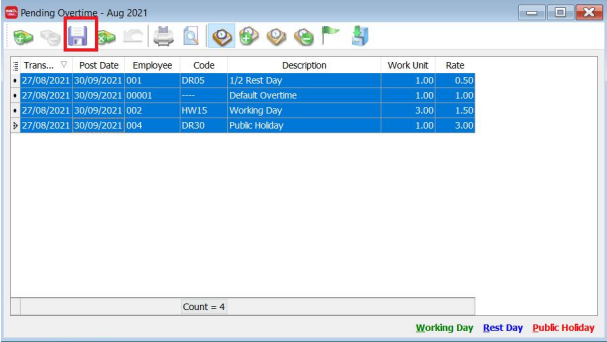
You will see that the Post Date has changed. Click Save. The changes are successfully saved when the icon turns grey.
-
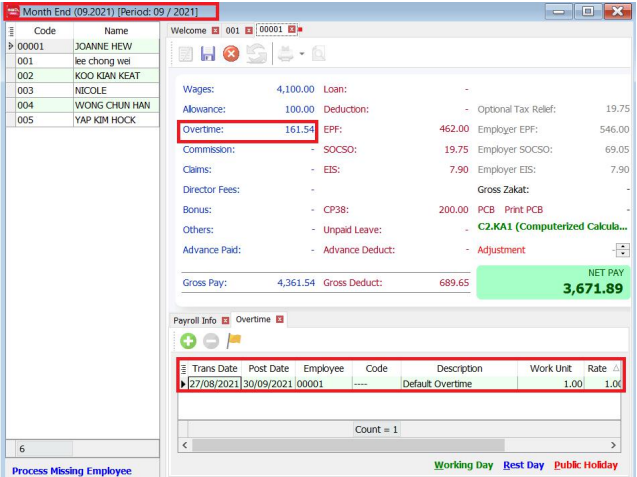
When you process your next month’s payroll, it will capture these values.
For example, September 2021’s month-end copied from August 2021:
-
Repeat the same steps for allowances.